Doodle: A Versatile Display Font for Creative Workflows
Every design project benefits from having a distinct visual voice. Whether you are building a brand identity, designing a promotional booklet, or adding personality to a digital interface, the choice of typography shapes how your audience perceives the message. Doodle, specifically the doodle_voysla_06 font pack, offers a playful yet structured option that fits seamlessly into both digital and print environments. Understanding how to integrate this resource into your broader workflow can save time, maintain consistency, and elevate the final outcome.
What Doodle Brings to Your Toolkit
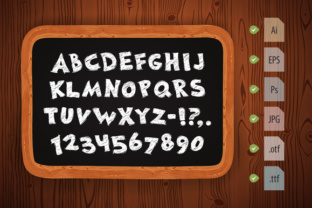
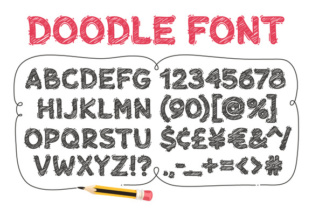
Doodle is a display font designed for situations where you want a hand-drawn, informal feel without sacrificing readability. Unlike standard serif or sans-serif typefaces, Doodle carries a sketch-like character that works well in headings, logos, posters, and other prominent placements. The pack includes vector files, high-resolution raster images, and both OTF and TTF font formats, giving you flexibility across different software environments.
It is important to note that Doodle does not include lowercase symbols. The font covers uppercase letters and numbers only, which makes it ideal for short bursts of text, titles, acronyms, or numeric data where impact matters more than paragraph-length legibility. Recognizing this limitation upfront helps you plan where and how to use it effectively.
Where Doodle Fits in a Broader Workflow
Typography decisions rarely happen in isolation. They sit within a sequence of planning, creation, revision, and delivery. Doodle can serve different roles depending on where you are in that sequence.
Before the Project: Planning and Conceptualization
During the early stages of a project, you are often exploring visual directions. Doodle can help you quickly mock up headline treatments for client presentations or internal brainstorming sessions. Because the pack includes editable vector AI and EPS files, you can experiment with sizing, color, and layout without committing to final rendering. This is especially useful when you need to communicate a casual or creative tone to stakeholders before investing time in more polished assets.
If you are working on a brand identity for a café, a children’s workshop, or a creative agency, dropping Doodle into a mood board can instantly signal the intended personality. The hand-drawn style pairs well with organic shapes, watercolor textures, or minimal layouts. You can test how it interacts with other typefaces you plan to use for body copy, such as a clean sans-serif for contrast.
During the Project: Execution and Production
Once the direction is approved, Doodle moves into active production. The file set provides several practical advantages here.
- Vector AI and EPS files allow you to treat each letter or number as a shape. This means you can recolor, scale, distort, or combine them with other vector elements without losing resolution. In Adobe Illustrator or Affinity Designer, you can manipulate individual anchor points to create custom ligatures or adjust kerning for specific layouts.
- Transparent PNG files at 5000×5000 px give you ready-to-use assets for web mockups, social media graphics, or quick placements in presentation software. The clipping paths in the JPG files make it easy to extract the letterforms if you are working in a raster-based workflow like Photoshop or Canva.
- OTF and TTF font files enable direct installation into your operating system. Once installed, you can access Doodle from the font menu in any application that supports custom fonts, including Figma, Sketch, InDesign, Word, or Google Docs. This is the most efficient way to apply the typeface across multiple pages or screens.
For a real-world example, imagine you are designing a series of event posters for a local art fair. You can install the OTF file, set your headlines in Doodle, and use the vector files to create decorative elements that echo the letter shapes. The consistency between the font and the vector assets reinforces the visual theme without requiring you to redraw anything.
After the Project: Delivery and Repurposing
After a project wraps, you may need to deliver assets to clients or prepare files for print. Having multiple formats in the Doodle pack simplifies this handoff. You can provide the client with the font files if they intend to edit text later, or you can supply the vector files if they need to maintain exact positioning. The high-resolution PNG and JPG versions are useful for quick previews or for use in environments where font installation is not possible.
Long-term, Doodle can become part of your recurring toolkit. Because it is a display font with a distinctive style, you can return to it for similar projects without starting from scratch. Keeping the AI and EPS source files organized in a folder structure with other fonts and assets streamlines future work. You can also create a library of pre-made headlines or numeric treatments that you reuse across campaigns, saving time on repetitive tasks.
Practical Implementation Tips
To get the most out of Doodle, consider how it interacts with the rest of your workflow. Here are some observations based on real usage.
Pairing with Other Typefaces
Since Doodle lacks lowercase letters and works best in short bursts, pair it with a neutral body font. A clean sans-serif like Inter, Roboto, or Open Sans provides contrast and ensures readability for longer text. Avoid pairing Doodle with another decorative typeface, as the result can feel cluttered. The contrast between a playful headline and a restrained body copy creates hierarchy without shouting.
Color and Background Considerations
The hand-drawn nature of Doodle means it performs well on solid backgrounds, textures, or photographs with sufficient contrast. Because the letterforms have irregular edges, avoid placing them over busy patterns where strokes might blend into the background. In printed materials, test the font at different sizes to ensure the sketch lines remain crisp, especially at smaller point sizes where details can get lost.
File Management and Organization
The pack includes multiple file types for the same set of letters and numbers. Keep the AI and EPS files as your master source for any vector editing. Use the OTF and TTF files for direct text input. The PNG and JPG files are best reserved for quick use or delivery when source files are not required. Naming your files clearly—for example, grouping by format type—will prevent confusion when you revisit the pack months later.
Quality Control in Print
If you are using Doodle in a booklet or poster that goes to print, verify that the font embeds correctly in your PDF. With vector AI/EPS files, outline the text before sending to a printer to avoid font substitution issues. For raster files, confirm that the 5000×5000 px resolution is sufficient for your output size. At 300 DPI, this resolution supports print up to roughly 16.7 inches, which covers most standard poster and booklet dimensions.
Use Cases Across Different Contexts
Doodle is not limited to one industry or application. Here are several scenarios where it fits naturally.
- Web design: Use Doodle for hero section headlines, call-to-action buttons, or navigation labels where you want to draw attention. Because it is a web-safe font after installation, you can use it in mockups or, with proper licensing, embed it via @font-face for live sites.
- Mobile apps: Short labels, splash screen text, or badge numbers can carry a hand-crafted feel. The transparent PNG files are especially useful for app asset catalogs where you need to supply pre-rendered images.
- Booklets and brochures: Section titles, pull quotes, and cover text benefit from Doodle’s personality. Keep body copy in a standard typeface to maintain readability across multiple pages.
- Posters and flyers: The bold, irregular strokes make Doodle effective for event promotions, sale announcements, or educational materials aimed at younger audiences.
- Social media graphics: Use the PNG files directly in tools like Canva or Photoshop for Instagram stories, LinkedIn banners, or YouTube thumbnails. The 5000×5000 px resolution gives you room to crop without losing quality.
Long-Term Use and Consistency
Over time, you may find yourself reaching for Doodle repeatedly for projects that require a consistent visual thread. If you manage a brand that uses this typeface regularly, document its usage guidelines. Specify the minimum size, recommended color palette, and acceptable pairings. This ensures that anyone on your team applies the font in a way that maintains the intended look.
Because the pack includes editable vectors, you can also create custom variations. For example, you might develop a set of branded icons or decorative elements that echo the letter shapes, extending the visual language beyond typography. This kind of integration deepens the coherence of your design system.
Final Observations on Integration
The value of a resource like Doodle lies not just in its visual style, but in how easily it fits into existing workflows. The combination of vector, raster, and font files means you are not locked into one method of working. Whether you prefer to type directly with the OTF file, manipulate shapes in Illustrator, or drop PNGs into a layout, the pack accommodates your process rather than forcing you to adapt.
By understanding where Doodle works best—short headlines, numeric displays, and creative contexts—you can avoid the common pitfall of using a decorative font where a more neutral one would serve better. Plan its use during the conceptual phase, execute efficiently with the right file format, and deliver cleanly with consistent assets. This approach turns a simple font pack into a reliable component of your broader toolkit.