Hellifa: A Modern Handmade Script Font for Creative Workflows
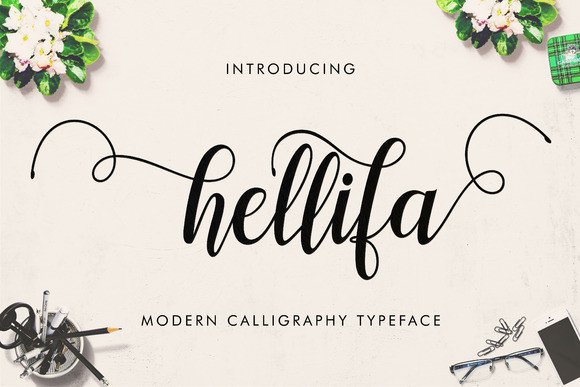
Hellifa is a modern handmade script font that brings a calligraphic, hand-lettered feel to digital projects. Its characters dance across the screen with a natural, flowing rhythm, making it an asset for anyone who needs a personal, decorative touch without sacrificing readability. With 774 unique glyphs and PUA encoding, Hellifa is designed to integrate smoothly into both professional design pipelines and everyday creative tasks. Whether you are planning an event, building a brand, or producing marketing materials, Hellifa offers a flexible typographic tool that fits into real workflows—from initial concept to final output.
What sets Hellifa apart is its balance between expressive style and practical usability. Unlike many script fonts that break under heavy use or lack alternate characters, Hellifa provides a full palette of ligatures, swashes, and stylistic variants. The font is PUA-encoded, which means every glyph is directly accessible in applications like Cricut Design Space, Silhouette Studio, Microsoft Word, Adobe Illustrator, Photoshop, PicMonkey, and many more. This encoding removes the need for complex workarounds or specialized software, allowing you to focus on the work itself.
Where Hellifa Fits in Your Creative Process
Hellifa is not a font you use for body copy or dense paragraphs. Its strength lies in accent, decoration, and emphasis. Think of it as the finishing layer on a project—the hand-lettered title, the calligraphic signature, the ornate label. In a typical design workflow, Hellifa enters after the structure and hierarchy are established, providing a visual contrast to clean sans-serifs or structured serifs. For example, an invitation layout might use a minimalist sans-serif for the details and Hellifa for the couple’s names, creating a focal point that feels organic and celebratory.
In an event planning workflow, Hellifa becomes the tool for creating cohesive stationery sets. Before the event, you can use it to design save-the-dates and invitations. During the planning phase, it can unify thank-you notes, place cards, and signage. After the event, Hellifa works beautifully for custom thank-you cards or digital keepsakes. Because it includes uppercase, lowercase, numerals, and punctuation—plus a rich set of alternates—you can maintain consistency across multiple pieces without repeating identical letterforms.
For small business owners and freelancers, Hellifa supports branding workflows that require a handmade, approachable aesthetic. A bakery, a stationery shop, or a wedding planner can use the font across logo mockups, social media posts, product labels, and even short website headlines. The PUA encoding means you can open any glyph in Word or Canva without needing advanced design skills, making it accessible to entrepreneurs who manage their own marketing.
Integration with Popular Design Tools
Hellifa works with nearly every application that supports OpenType features and PUA encoding. In Adobe Illustrator and Photoshop, you can use the Glyphs panel to browse and insert alternate characters. This is useful when you want to swap a default letter for a swash version or create a ligature between two characters. In Microsoft Word, Hellifa is straightforward: install the font, type your text, and use the Symbol menu or Character Map (on Windows) to insert special glyphs. For users of Cricut Design Space and Silhouette Studio, the PUA encoding allows you to access every glyph directly through the font dropdown and the special character picker. This is especially valuable for crafters who rely on precise, decorative lettering for vinyl decals, card making, and custom apparel.
A practical workflow example: You are designing a set of custom coffee mugs with a vinyl cutter. First, lay out the phrase in a bold sans-serif for the body of the message. Then, replace key words or initials with Hellifa, selecting swash capitals for the first letter. Use the PUA glyph picker to choose a heart or leaf ornament to frame the text. Export the design as an SVG or PNG, then cut and apply. The entire process takes minutes because Hellifa is already loaded in your software and the glyphs are immediately selectable.
Planning Your Glyph Selection for Consistency
With 774 glyphs at your disposal, it is tempting to use many alternates in a single project. However, consistency matters more than variety. Before you start a project, decide which style you want: formal with restrained swashes, playful with extreme flourishes, or something in between. Hellifa includes multiple stylistic sets; you can assign one set to headings and a different set to subheadings, or keep the same set throughout. For long-term use, such as a brand identity, document the chosen glyph combinations so you can replicate them across future materials. This is especially useful for bloggers and educators who produce recurring content—templates with Hellifa can be saved as master files, and only the text needs updating.
When preparing a design for print or digital, test the font at the intended sizes. Hellifa’s calligraphic strokes add detail that may become muddy at very small sizes (below 12pt). For body text, consider using a complementary sans-serif or serif and reserving Hellifa for display purposes. This practical separation improves readability while preserving the decorative impact.
Quality Control and Long-Term Use
Because Hellifa is a modern script font, its kerning and spacing are generally well-tuned. However, when using extreme swash characters that extend far left or right, check for unintended overlaps with neighboring letters or graphics. In vector editing software, you can adjust spacing manually. In Cricut Design Space, you may need to ungroup the text and nudge characters individually. This extra step takes seconds but ensures a clean cut or print.
For long-term projects, such as a series of marketing emails or a course workbook, consider embedding Hellifa in your PDFs or as a web font (if licensed). Many designers prefer to use Hellifa in static images rather than live text to avoid rendering issues across different systems. When creating social media templates, export the text as a PNG or SVG to preserve the glyphs exactly as intended. Over time, build a library of pre-approved Hellifa layouts for common formats—Instagram stories, flyers, blog headers—so you can reuse them without re-selecting glyphs each time.
Practical Implementation Tips
- Install properly: Download the font file, unzip it, and install it system-wide (Windows: right-click > Install; macOS: double-click > Install Font). Restart applications that were open during installation.
- Access alternates: In Windows, use Character Map; on macOS, use Font Book or the Character Viewer. In design apps, open the Glyphs panel (Window > Type > Glyphs in Adobe). In Cricut Design Space, select the text, then use the drop-down “Advanced” menu to find “Glyphs” (if installed via a helper plugin like Font Manager).
- Create a cheat sheet: Type the alphabet and all alternate characters in a document, then export as a PDF. Keep it handy for quick reference when you need to recall which glyph corresponds to a particular swash.
- Layer with other fonts: Pair Hellifa with a simple sans-serif like Montserrat or a clean serif like Playfair Display. Use Hellifa for one or two words per line to avoid visual clutter.
- Test before production: Always preview Hellifa at the intended scale on the intended substrate (paper, vinyl, screen). What looks elegant at 300% may look crowded at actual size.
Workflow Examples by Audience
For bloggers and content creators: Use Hellifa for pull quotes, section headings, and signature graphics. Because you can access alternates through PicMonkey or Canva, you can quickly create branded headers without leaving your browser. Save a Canva template with Hellifa installed (upload the font to Canva) so every new post begins with consistent decorative lettering.
For educators and course creators: Hellifa works well for title slides, certificate templates, and lesson name cards. Use the swashes to frame titles, but keep lesson body text in a neutral typeface. This visually separates decoration from instruction, helping learners focus on content.
For event planners and invitation designers: Before sending an invitation to print, check that all glyphs render correctly on the recipient’s system if you use live text. Safer practice: convert Hellifa text to outlines (vector shapes) or flatten to a high-resolution image. This preserves the exact swashes and ligatures.
For small business owners using Cricut or Silhouette: Create a library of reusable SVG files with your logo phrases in Hellifa. When you need a new sign or mug, open the file, change the color, and cut. This streamlines production runs and maintains brand consistency across physical products.
Hellifa is not just a pretty typeface; it is a working tool. Its 774 glyphs and PUA encoding remove friction from the creative process, letting you focus on composition and message. By understanding where it fits in your workflow—before, during, or after a project—you can apply it intentionally rather than decoratively. Plan your glyph use, test your output, and build reusable assets. Over time, Hellifa becomes a reliable part of your design system, delivering a handmade feel without the guesswork.